How to Make Free Quizzes Fast and Easy
Creating quizzes for education, training, or assessment has never been easier! Free Quiz Maker is a powerful, user-friendly Progressive Web App (PWA) that lets you create, customize, and store quizzes in minutes completely free and without any registration required. Everything is stored locally on your computer.
Free Quiz Maker is a web-based application that transforms simple text into interactive, professional quizzes. Whether you’re a teacher preparing exams, a trainer creating assessments, or a student making study materials, this tool simplifies the entire process. Best of all, it works offline once installed and can be saved to your device as a Progressive Web App. The project was vibecoded because most of the quiz makers online are not free and I needed this app.
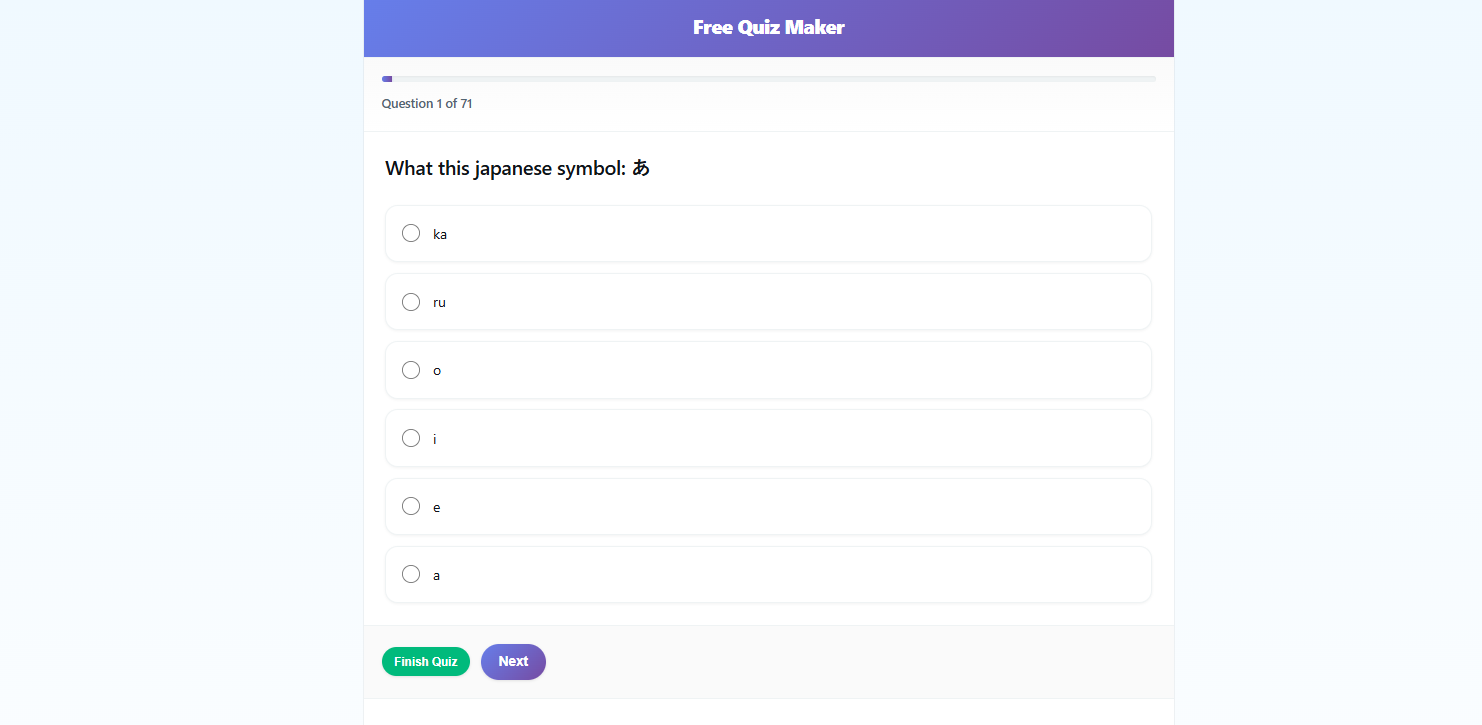
Features
Multiple Question Types
- Multiple Choice: Traditional single-answer questions
- Checkbox: Questions with multiple correct answers
- Fill in the Blank: Complete-the-sentence style questions
- Match: Pair terms with their definitions
- Flash Cards: Self-assessment cards for memorization
Rich Media Support
- Images: Embed images directly in questions using markdown syntax
- Videos: Add YouTube videos or direct video links to enhance learning
- Responsive Design: Automatically adjusts for desktop and mobile devices
Customization Options
- Randomize Question Order: Mix up the sequence for different attempts
- Randomize Answer Options: Shuffle multiple choice and checkbox answers
- Immediate Feedback: Show answers right away or at the end
- Save & Load: Store up to 20 quizzes locally for quick access
Results & Analytics
- Detailed Results: See your score, correct/incorrect answers, and percentage
- Question Review: Review all questions with correct answers highlighted
- Retake Options: Retake the entire quiz or only wrong questions
- Export & Print: Export quizzes as backup files or print results as PDF
How to Use Free Quiz Maker
Step 1: Access the App
Navigate to the Free Quiz Maker website. The app works in any modern web browser and can be installed as a PWA for offline access.
Step 2: Create Your Quiz
You have two options to create a quiz:
Option A: Type Questions Directly
- Click in the text area labeled “Paste your quiz questions here…”
- Type your questions using the simple format (see formats below)
- Click “Submit Quiz” when finished
Option B: Upload a .qz File
- Click “Choose File” or drag and drop a
.qzfile - The quiz will automatically load and display
Step 3: Preview Your Quiz
After submitting, you’ll see a preview of all your questions. You can:
- Review each question
- Delete questions you don’t want
- Edit the quiz to make changes
- Save the quiz for later use
Step 4: Configure Settings
Before starting the quiz, adjust your preferences:
- Show answers immediately with a button or at the end in the results
- Randomize question order (optional)
- Randomize answer options (optional)
Step 5: Take the Quiz
Click “Start Quiz” to begin. Navigate between questions using Previous/Next buttons, and answer according to the question type.
Step 6: View Results
After finishing, you’ll see:
- Your overall score percentage
- Number of correct/incorrect answers
- Detailed review of each question
- Options to retake, save, or export
Question Format Guide
Multiple Choice Questions
  # What is the capital of France?
- London
- Berlin
- Paris X
- Madrid
- Start with
#followed by a space - List options with
-(hyphen) - Mark correct answer with space and
Xat the end
Checkbox Questions (Multiple Correct Answers)
  ## Which are programming languages?
- Python X
- HTML X
- French
- JavaScript X
- Start with
##(two hashes) followed by a space - Mark all correct answers with space and
Xat the end
Fill in the Blank Questions
  ### The capital of France is ___
- Paris
- Start with
###(three hashes) followed by a space - Use
___(three or more underscores) for blanks - Provide answers with
-on separate lines
Match Questions
  #### Match the countries with capitals
- [France, Paris]
- [Germany, Berlin]
- [Spain, Madrid]
- Start with
####(four hashes) followed by a space - Format:
[Term, Definition] - Each pair on a separate line with
-
Flash Card Questions
Baum in german means what? ---> It means Tree
- Use
--->to separate question from answer - Each flash card on a single line
- No prefix needed
Adding Images
  # What is shown in this image? [Image Description](https://example.com/image.jpg)
- Option 1
- Correct Answer X
- Use markdown format:
[Description](image-url) - Works in questions and answer options
Adding Videos
  # Watch this video: [Video Title][https://example.com/video.mp4]
- Option 1
- Correct Answer X
- Use double brackets:
[Title][video-url] - Supports YouTube and direct video links
Line Breaks
  # Question with line break**<br>**This is a new line
- Option 1
- Correct Answer X
- Use
<br>tag for line breaks in questions
Advanced Features
Saving Quizzes
- Click “Save Current Quiz” on preview or results page
- Enter a name for your quiz
- Access up to 20 saved quizzes from the “Saved Quizzes” section
- Note: Storage is not persistent—export quizzes as backup files
Loading Saved Quizzes
- Click on any quiz in the “Saved Quizzes” section
- The quiz will load and replace the current one
- You can then edit, start, or export it
Exporting Quizzes
- Click “Export Quiz (Backup)” to download as
.qzfile - Share the file with others
- Import it later to use again
Retaking Quizzes
- Retake: Start the entire quiz over
- Retake only Wrong Questions: Focus on questions you got wrong
- Both options respect your randomization settings
Printing Results
- Click “Print Results” on the results page
- Generates a clean PDF for review or sharing
- Includes all questions, answers, and your responses
Troubleshooting
Quiz Won’t Load
- Check that your format matches the examples
- Ensure correct answers are marked with
X - Verify flash cards use
--->(three dashes and arrow)
Images Not Showing
- Check that image URLs are accessible
- Use direct image links (ending in .jpg, .png, etc.)
- Ensure URLs are in proper markdown format
Answers Not Saving
- Make sure you’ve selected an answer
- Check that the quiz hasn’t been reset
- Try refreshing the page
Can’t Save More Quizzes
- Maximum of 20 saved quizzes
- Delete old quizzes to make room
- Export quizzes as backup before deleting
Privacy & Data
Free Quiz Maker runs entirely in your browser. All quiz data is stored locally on your device. No information is sent to external servers, ensuring complete privacy. However, remember that local storage can be cleared, so always export important quizzes as backup files.
Conclusion
Free Quiz Maker makes creating professional, interactive quizzes incredibly simple. With support for multiple question types, rich media, and powerful customization options, it’s the perfect tool for educators, trainers, and learners alike. Best of all, it’s completely free, works offline, and respects your privacy.
Start creating your first quiz today and experience how easy quiz-making can be!